

Multi-folder and cross-device projects reflect the current Beta. Devices share the project and its group chat. File contents stay on each device.
Screenshots on this page show the Chinese interface.
Create a project
On desktop, go to Projects in the far-left column. The + in the projects section offers three options:
Use an existing folder does not initialize a repository or rewrite contents. To add a folder to an existing project, click + on the project card and choose the device and folder, or drag a folder in.
After adding, check the actual path on the card. In the current Beta, choosing a subfolder inside a Git repository may show the repository root. If you need to start from the material folder only, extract the practice material into a separate folder outside the repository.
Which folder to start from
Open the project card and check each folder’s device and path. Click one, then send your first request from the input box at the bottom. The task starts in that folder on that device. A project can cover one or more devices. When you actually send a task, you still choose one folder where it runs.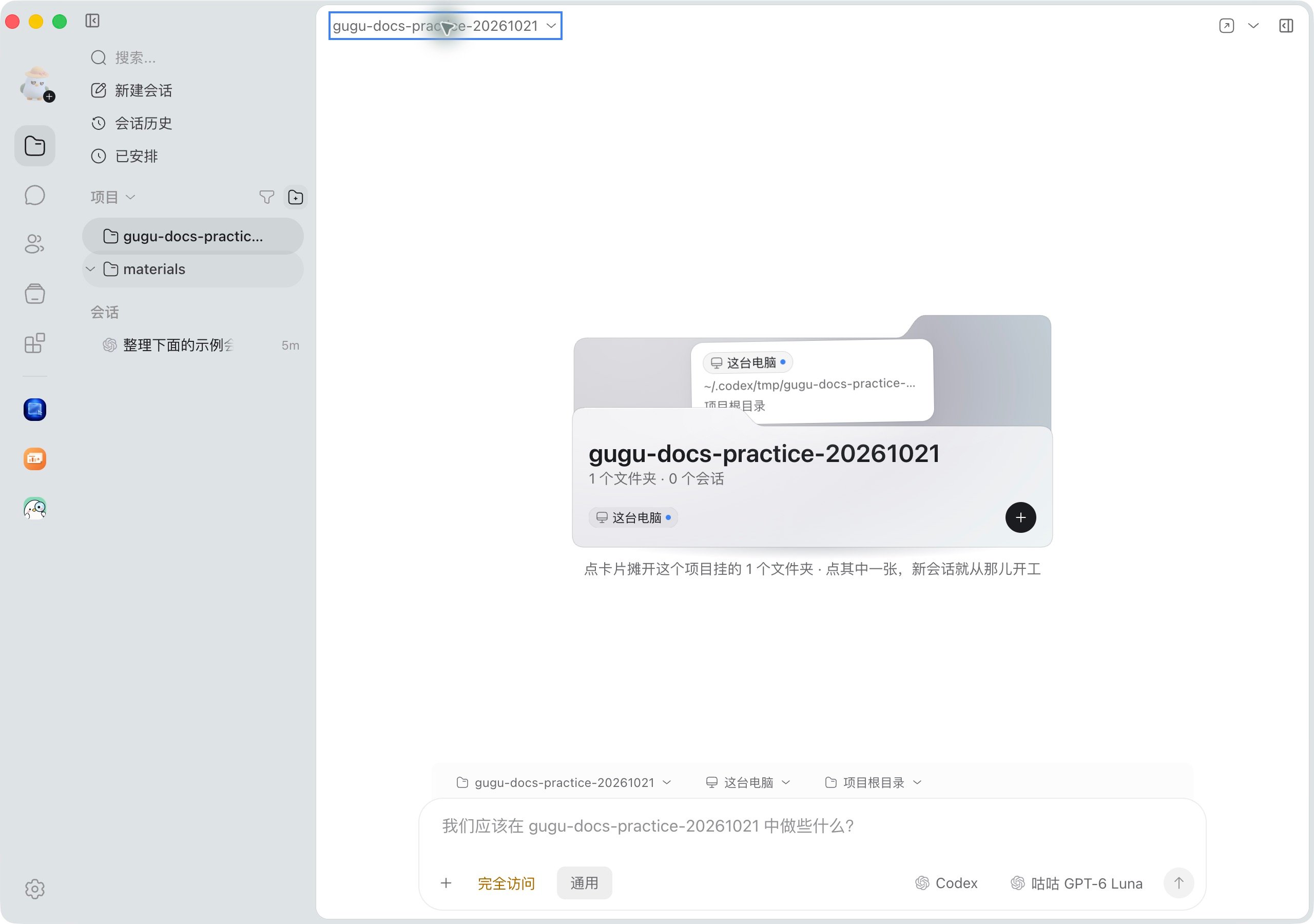
Real Beta interface: the card shows devices and paths, and the bottom selects the folder this task starts in.
A folder belongs to only one project. Switching the working directory inside a task does not switch the project or group.
Hand off between Agents on two devices
When the experiments are done, post the parameters, result table and anything still unconfirmed to the project group, put the table in the group folder, then ask the writing Agent to revise the paper based on it.The other machine does not get your local files automatically. Share deliverables as attachments, in the group folder, or in a reachable repository. When referring to code, name the branch or version.